Accessing the Servers
Who has access to these machines
If you are a undergraduate you will only have access to the teaching machines.
Everyone else automatically has access to the research machines. Please reserve the teaching machines for undergraduates and teaching use only.
Accessing research and teaching servers from off-campus
To access the research servers from Off-Campus you can either use the Virtual Private Network - VPN or the SSH gateway service
Access from a UNIX server or desktop
To login from a terminal window, type the following from your local device with your university username (abc123):
$ssh username@research0.york.ac.uk
If you require X forwarding, type:
$ ssh -X username@research0.york.ac.uk
You will be prompted for your IT Services password.
Accessing teaching0 is done in the same manner.
For a full remote desktop, see the x2go section below.
Access from a Windows desktop
Command-line access using PuTTY
PuTTY is available on all IT Services Managed Windows systems: it is pre-installed on Classroom PCs, on Office PCs you can install it from Run Advertised Programs / Software Center. It appears under "Internet Tools" on the start menu.
On unmanaged PCs you can download the installer from the PuTTY Website
When you run PuTTY for the first time, enter the following settings (teaching0 uses the same settings):
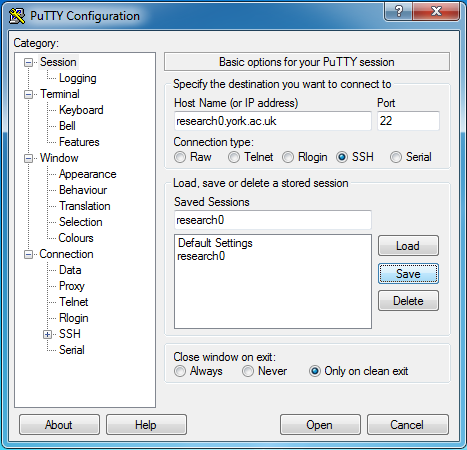
- Add the name "research0.york.ac.uk" to the 'Host Name' field
- Check the 'Connection Type' to SSH
- Type the name "research0" in 'Saved Sessions'
- Click 'Save'
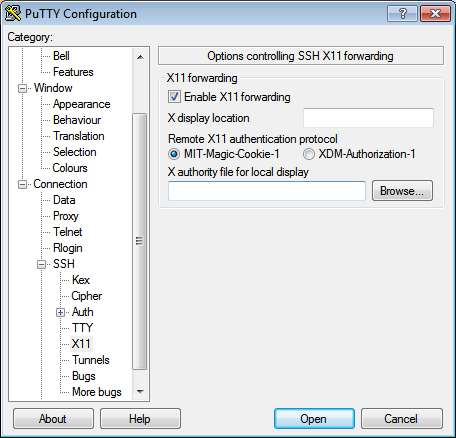
- Expand the 'SSH' tab from the 'Category' list
- Choose 'X11' from 'SSH' list
- Check 'Enable X11 Forwarding'
- Choose 'Session' from 'Category' list
- Click 'Save'
Connecting to Research0
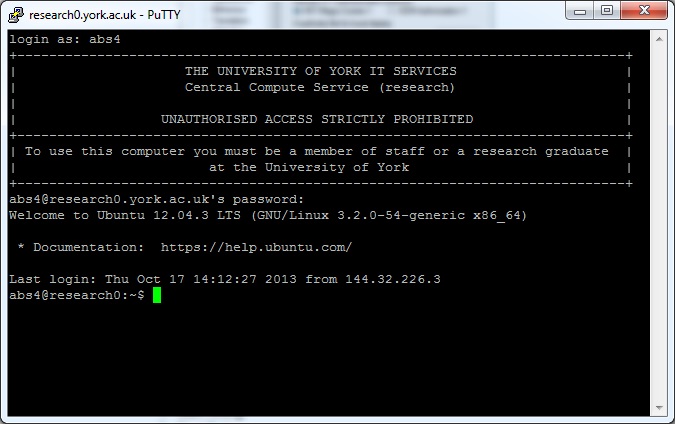
- Start PuTTY
- Select 'research0' from the 'Saved Sessions'
- Click 'Open'
- The first time you connect you will get a security alert showing the fingerprint of the server, labeled as 'ssh-rsa' or 'ssh-ed25519'. Check the fingerprint below for the label shown and click "Yes" to proceed if it matches.
         ssh-rsa 2048 5c:43:e5:e6:57:e0:4d:9f:f8:b5:ca:52:2f:30:39:ef  research0
         ssh-rsa 2048 bb:1f:6e:58:fa:d7:23:0d:ae:b2:b2:e8:62:a0:e7:5c  research1
         ssh-rsa 2048 ac:7e:1e:2a:05:d8:a1:3b:cf:b5:77:48:d0:bb:8a:22  teaching0

         ssh-ed25519  5a:c9:c1:76:16:00:42:45:f9:e5:bd:63:5d:87:db:8a  research0
         ssh-ed25519  f4:51:59:b7:b5:74:1c:14:a7:2c:78:1c:11:1f:72:cc  research1
         ssh-ed25519  f4:ff:10:59:1e:5f:21:10:14:59:6e:04:16:63:7d:95  teaching0
Access from a Mac
Go to 'Finder | Applications | Utilities' and run the Terminal application. Then type the following:
$ ssh research0.york.ac.uk
Teaching0 can be accessed in the same manner.
For a graphical login, install and configure the x2go client software as described below
Graphical login using x2go - Linux, Windows, Mac
x2go client is available on all IT Services Managed systems : it is pre-installed on Classroom PCs, users on Windows can install it from Run Advertised Programs / Software Center. It appears under "Internet Tools" on the start menu - and there are pre-defined menu entries for research0 and teaching0

On unmanaged PCs you can download the installer from the x2go Website You will need to configure the settings as follows (teaching0 uses the same settings):
- If the "New session" panel does not appear, select the menu item "Session | New session..."
- Enter "research0" in the 'Session name' field at the top
- Enter "research0.york.ac.uk" to the 'Server: Host Name' field
- Change the 'Session Type' as follows:
- on Ubuntu 22.04 and newer, to LXDE
- For Ubuntu 20.04 and earlier, to XFCE
- All other settings can stay on default.
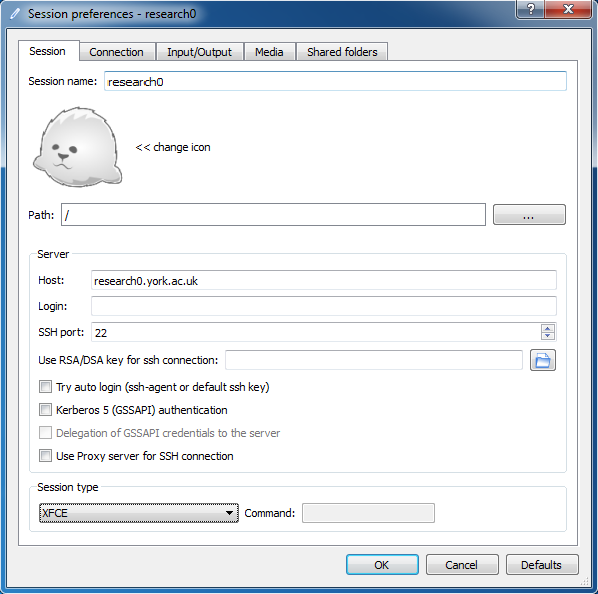
If you wish to change any settings:
- Cancel any login dialogs
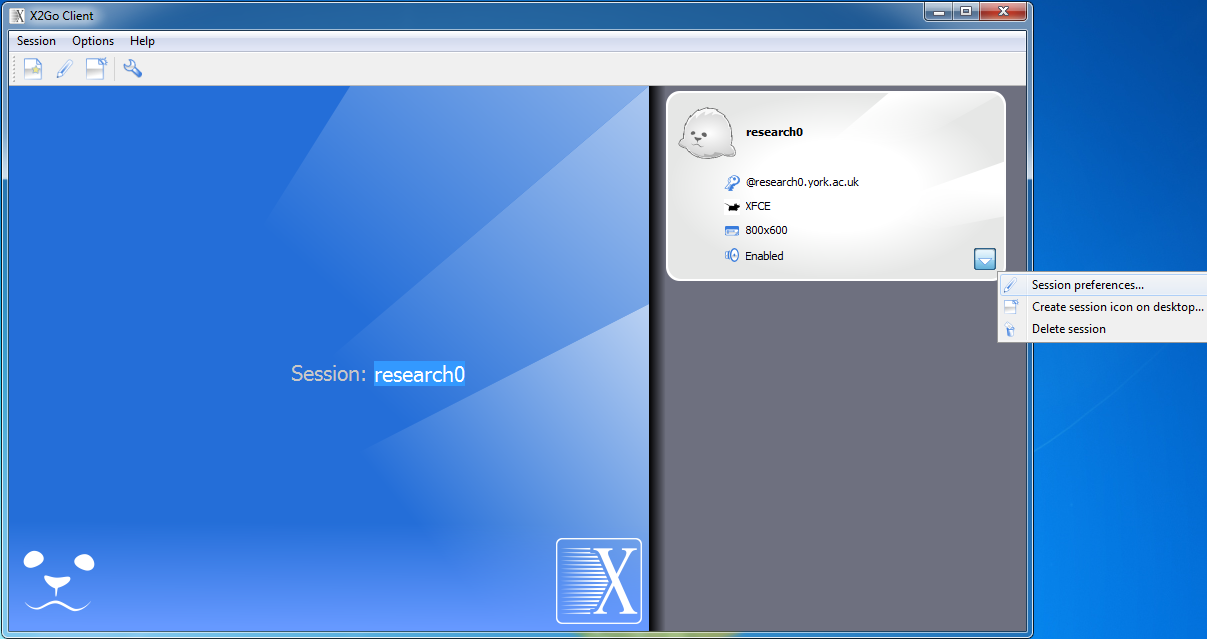
- Click the pull-down on the corner of the panel and select "Session preferences..."